
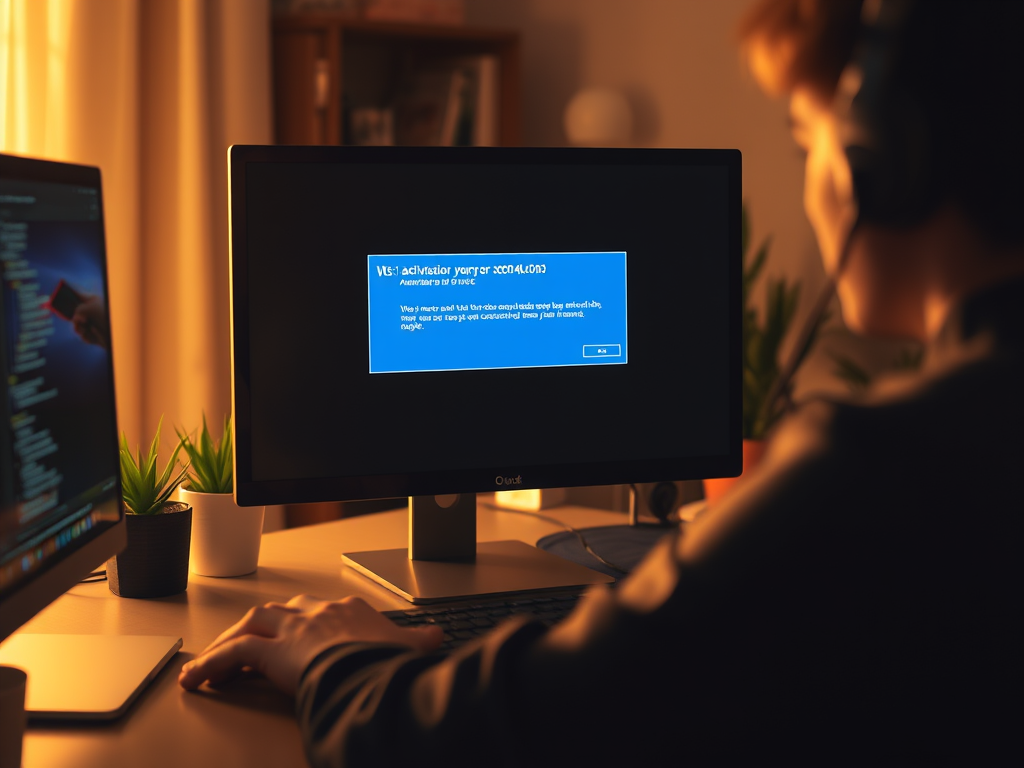
Understanding and Fixing Windows 11 Activation Error 0xc004c003
Encountering an activation error can be a frustrating experience, especially after installing a new operating system like Windows 11. One common message that often leaves users scratching their heads is “Windows 11 activation error 0xc004c003”. This error typically indicates that the product key you’re using has been blocked by Microsoft’s activation servers, often because it’s already in use on another computer or is not a valid retail key for your current hardware configuration.
Don’t panic! This guide will walk you through understanding what causes this error and, more importantly, how to fix Windows 11 activation error 0xc004c003 with practical, step-by-step solutions.
What Causes Error 0xc004c003?
The 0xc004c003 error code usually points to a product key issue. Here are the most common scenarios:
- Hardware Changes: If you’ve recently upgraded significant hardware components like your motherboard or CPU, Windows might see your computer as a “new” device. OEM (Original Equipment Manufacturer) keys are tied to the original hardware and typically cannot be transferred.
- Invalid or Used Key: The product key you’ve entered might be incorrect, a volume license key attempting to activate a retail installation, or a key that has already exceeded its activation limit.
- Server Issues: Occasionally, Microsoft’s activation servers might be temporarily offline or experiencing high traffic, preventing your activation from going through.
- Genuine License Check: Microsoft’s activation servers perform checks to ensure that the key being used is legitimate and matches the edition of Windows installed. If there’s a mismatch or the key is flagged, this error can appear.
How to Fix Windows 11 Activation Error 0xc004c003
Troubleshooting activation errors requires a systematic approach. Here’s a comprehensive guide to resolve error 0xc004c003:
1. Check Your Internet Connection
It might sound basic, but a stable internet connection is crucial for the activation process. Ensure you are connected to the internet before attempting any activation steps.
2. Run the Activation Troubleshooter
Windows 11 includes a built-in troubleshooter specifically designed for activation issues. This tool can often diagnose and fix common problems automatically.
- Go to Settings > System > Activation.
- If your system isn’t activated, you’ll see an option to Run the troubleshooter. Click on it and follow the on-screen prompts.
3. Verify Your Product Key and Edition
Double-check that the product key you’re using is correct and corresponds to the version of Windows 11 installed (e.g., Home, Pro). A common mistake is trying to activate Windows 11 Pro with a Home key or vice-versa.
4. Activate by Phone
If online activation fails, you can try activating Windows by phone. This method allows you to speak to a Microsoft representative or use an automated system.
- Press
Windows key + Rto open the Run dialog. - Type
slui 4and press Enter. - Select your country/region from the list.
- Follow the instructions to call the provided phone number and provide your installation ID. You will receive a confirmation ID to enter back into the dialog box.
5. Re-enter Your Product Key
Sometimes, simply re-entering the product key can resolve minor glitches.
- Go to Settings > System > Activation.
- Click on Change product key.
- Enter your 25-character product key carefully and click Next.
6. Contact Microsoft Support
If none of the above steps work, it’s time to reach out to Microsoft Support directly. They have the tools to verify your license and guide you through the activation process. Be prepared to provide proof of purchase for your Windows license.
7. Consider a New, Legitimate Product Key
If your current key is confirmed to be invalid, used on too many devices, or an OEM key on new hardware, the most straightforward solution is to purchase a new, legitimate product key.
- For users looking for a cheap Windows 11 Pro product key lifetime guarantee, or if you need to know where to buy Windows 10 home to pro upgrade key, it’s crucial to buy from reputable vendors.
- The best place to buy legit Microsoft product keys 2026 is typically directly from Microsoft’s official store or authorized retailers. While some third-party sites offer significantly lower prices, always exercise caution and verify their legitimacy to avoid scams or invalid keys. Look for sellers with excellent reviews and clear return policies.
Beyond Windows: Activating Other Microsoft Products
While this guide focuses on Windows 11, similar principles apply to other Microsoft software. For instance, if you’re wondering how to activate Office 2026 without subscription, this generally refers to a perpetual license (one-time purchase) version of Office, as opposed to the Microsoft 365 subscription model. For these perpetual licenses, you’ll typically receive a product key that you enter during the installation or initial launch of an Office application, much like activating Windows. Ensure you purchase your Office (Note: MAX_TOKENS)

No comment